
Better Plans in Your Spec-Driven Development
Four cards show where a change goes, how it behaves and what you'll see, so you can question it before any code exists.
Spec Kit makes the AI agent write three documents before it writes any code: a spec, then a plan, then a list of tasks. I wrote about why that order helps in Stop Vibe Coding, Start Shipping.
When the work is spec-driven, the code follows the plan. The plan is where the agent says which files it'll touch and how the change will work. So it's the last place where a wrong turn costs one sentence to fix, and the one place I need to understand fully before I say yes.
It's also the one I've been skimming. The plan step writes several documents: the plan itself, plus research notes, a data model and contracts. The plan for one feature on a real app came out at about a hundred lines. I read the spec, and then I scrolled the plan.
That's backwards, because understanding the plan is one of the basic steps in Spec Kit: the tasks and the code both come from it. If I can't picture what the plan says, I won't notice when it's wrong, and by the time I do, changing it costs code instead of a sentence.
Where the idea came from
The push came from html-plan, a Claude Code plugin by Thariq Shihipar. It writes a plan as one interactive page: call stacks, code with notes pinned to lines, state machines that show the screen for each state, and small mockups. You comment on any part, pick answers to its open questions, and paste one response back to the agent.
I wanted that for Spec Kit, without leaving Spec Kit's documents. Spec Kit already has a home for some of it: open questions get settled on the spec with the Clarify step, and the shape of the data goes in the data model. What it didn't have was a way to see the parts of a plan that are hard to picture from text.
SpecKit Companion, the VS Code extension I build for Spec Kit, now draws those parts as cards. They're called plan blocks, and there are four kinds: the functions a change reaches, the states a thing moves through, a rough sketch of a screen, and a note pinned to one line of code. Each one is a fenced block inside plan.md, so it still reads as plain text on GitHub or in a terminal, and the viewer draws it as a card.
Each card answers one question I'd otherwise have to work out from the text.
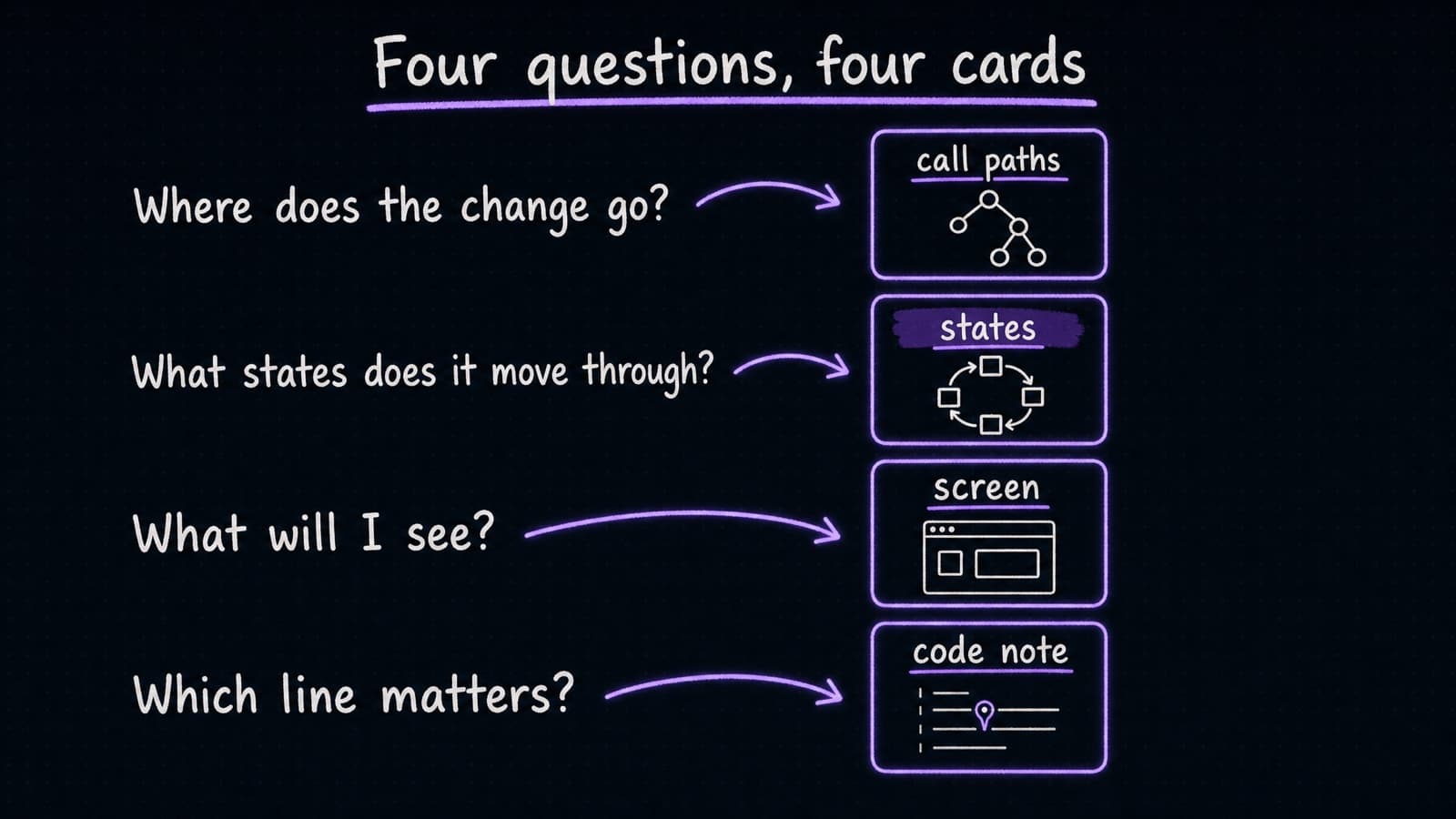
A plan rarely needs all four. A change with no lifecycle has nothing for the states card to show, so the plan step leaves it out.
Every picture below comes from a real plan on Conduit, a public demo app, for a feature that saves favorites while you're offline. Here's that plan open in the viewer.
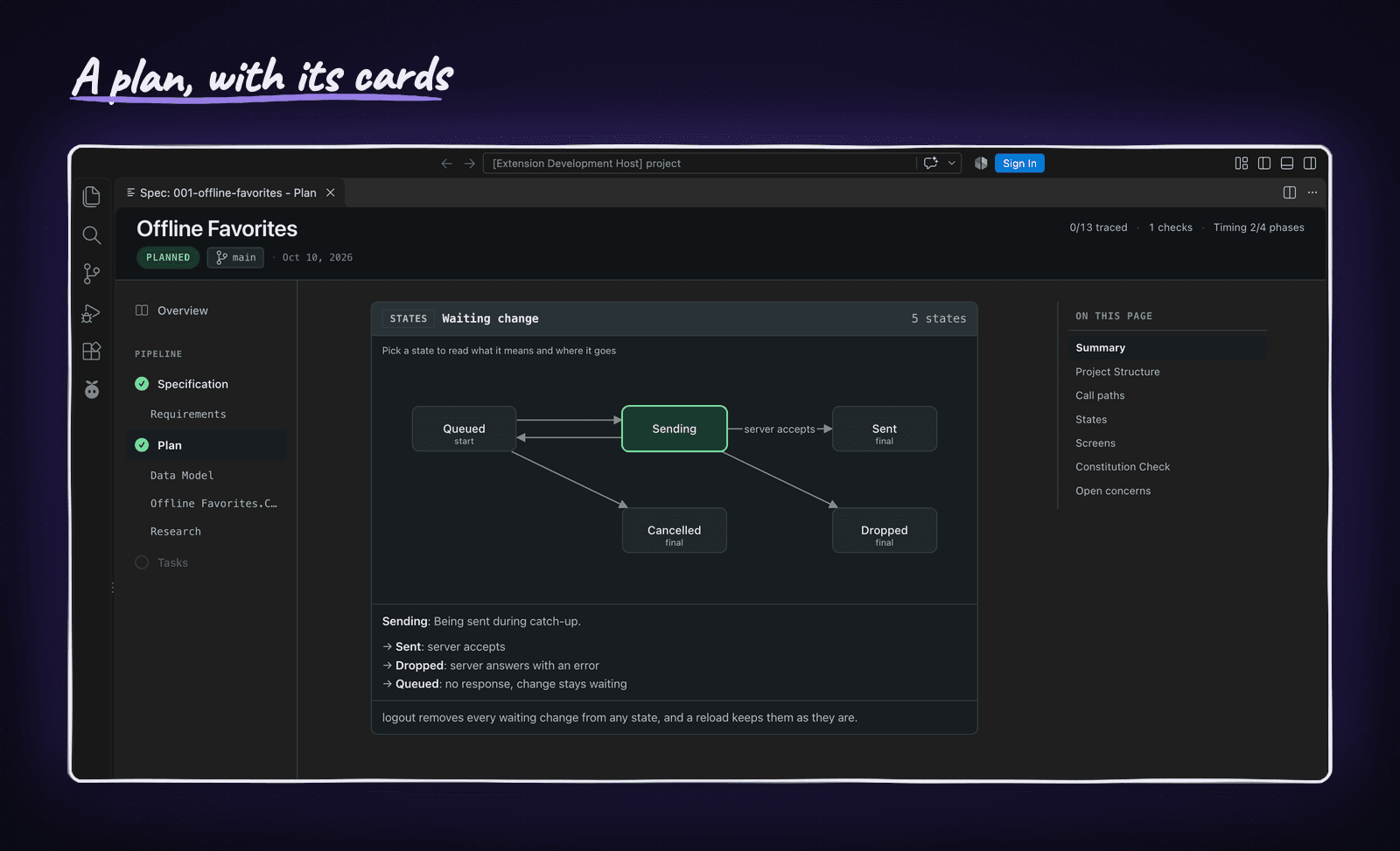
The plan didn't get shorter, and the text is all still there. What changed is that I no longer have to build the picture in my head before I can question it.
Call paths show where the change goes
A call path lists the functions a change reaches, in order, each with its file and line. Rows the change edits are marked, and so are rows that don't exist yet.
This is the card for marking a favorite while offline.
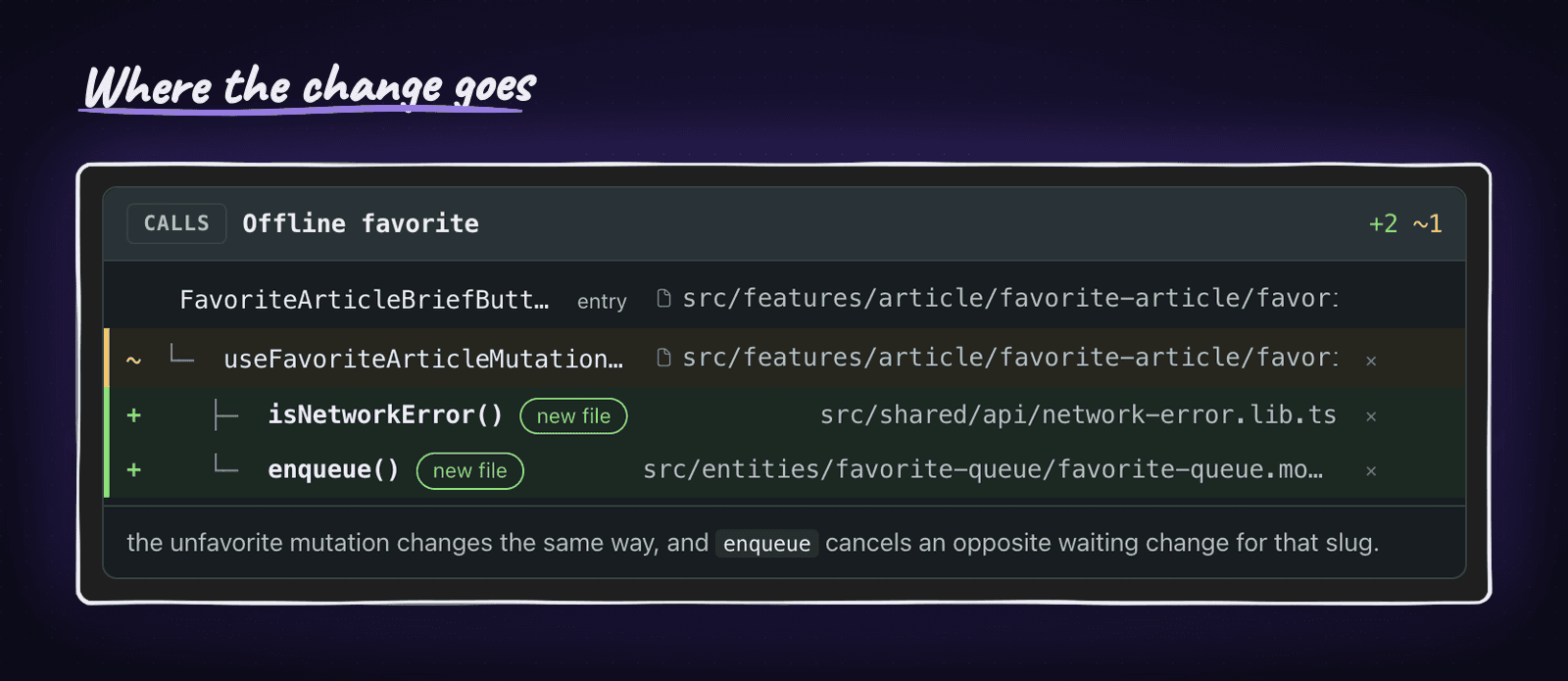
I can see how far the change spreads before any code exists. It starts at the favorite button, edits one function that's already there, and adds two new ones in two new files. If one of those rows sat in a folder I didn't expect, this is where I'd catch it, because a file name in a list is easier to question than the same file name in the middle of a paragraph.
The rows aren't read-only. Here I strike one row and leave a question on another.

Both wait as pending comments until I send them, the same as a comment on any other line of the plan.
States show the life of a thing
Some changes add a thing that has a life. Here it's one waiting change: a favorite you made offline that still has to reach the server. The plan names five states for it: queued, sending, sent, dropped and cancelled.
The states card draws them as boxes with arrows. Click a state and it shows its sentence and its ways out.

Sending has three ways out, and the third is the one I'd have missed in prose. The server accepts the change, or it answers with an error, or it doesn't answer at all and the change goes back to waiting.
In prose, the no-answer case is one clause among many. On the card it's an arrow back to Queued, and if that arrow were missing I'd see the gap.
Screens sketch what a person will see
When a change alters what's on screen, the plan can sketch it. The sketch is boxes with words in them and a few numbered notes. For this feature, the whole visible change is one new chip in the header that counts the waiting changes.
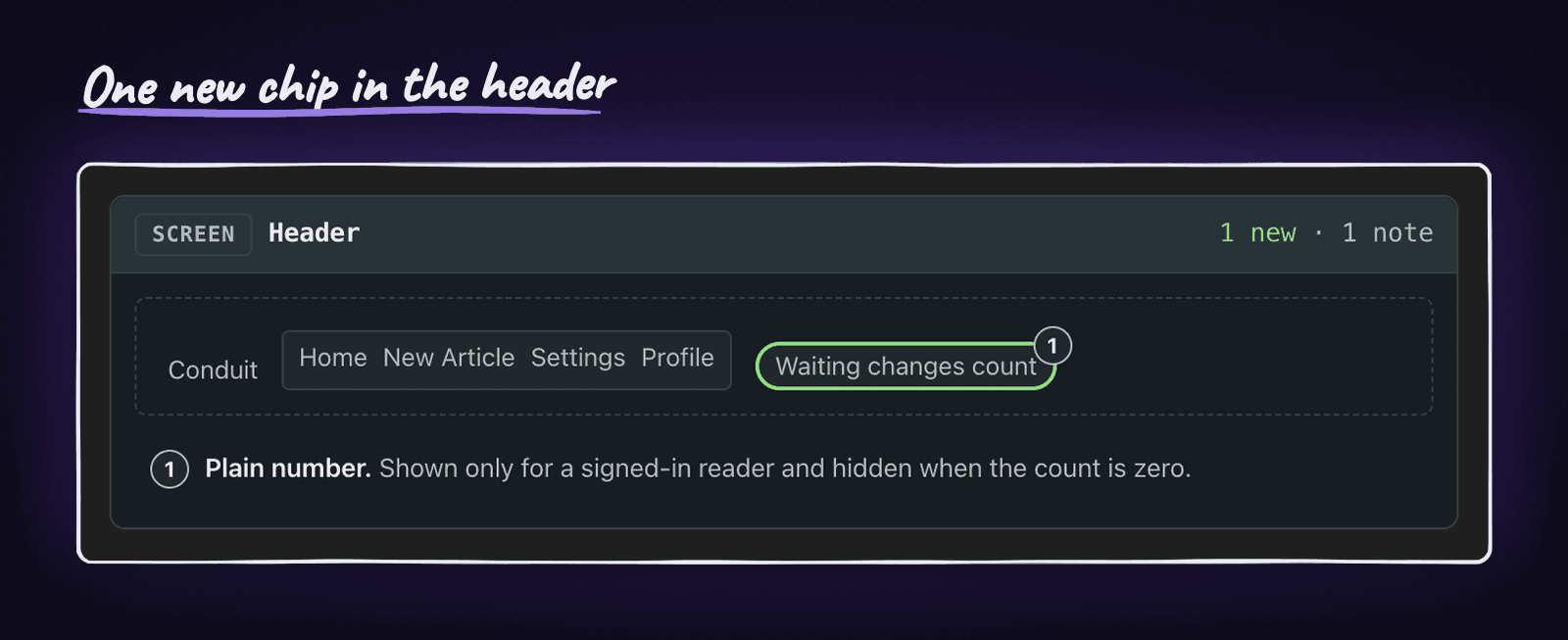
It's rough on purpose. The card says what appears and where, and it leaves how it looks to the design. That's enough to agree on what a person sees before anyone builds it. The one note on this card settles two questions I'd otherwise ask in review: the chip shows only for a signed-in reader, and it hides when the count is zero.
A state can also point at its screen, so picking a state shows the screen that goes with it. The offline plan had no use for that link, because none of its states has a screen of its own. This one comes from another real plan on the same app, for a draft, review and publish flow.
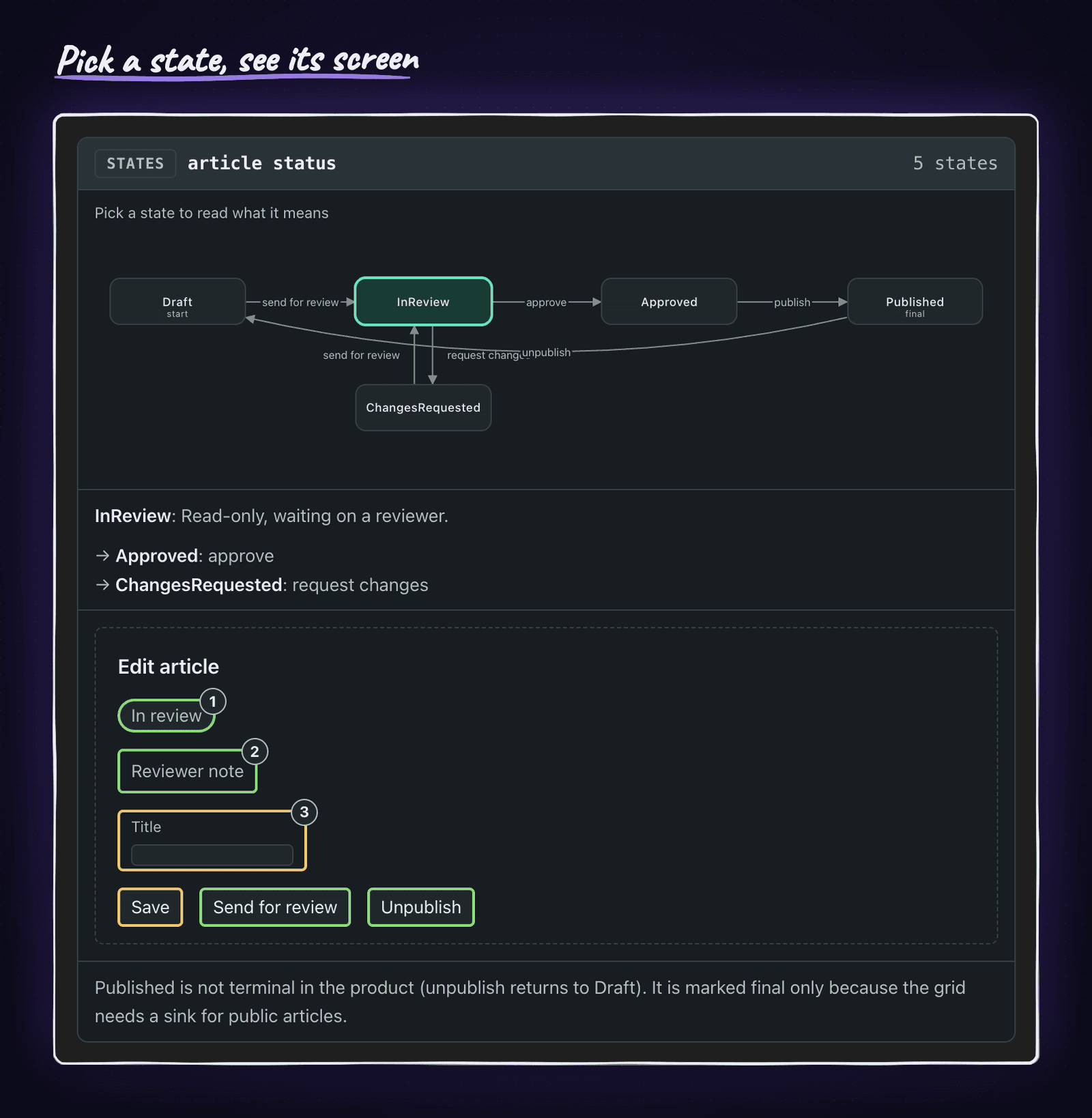
Now the two cards answer one question together: in this state, what am I looking at?
Code notes point at the one line that matters
The fourth card shows a few real lines from a file, with a note pinned under the line it explains.
The offline plan didn't get one. No single line in it needed a sentence, so the plan step left the card out. This picture is from another real plan on Conduit, for a bug where the article feed kept showing the old articles after you picked a new tag.
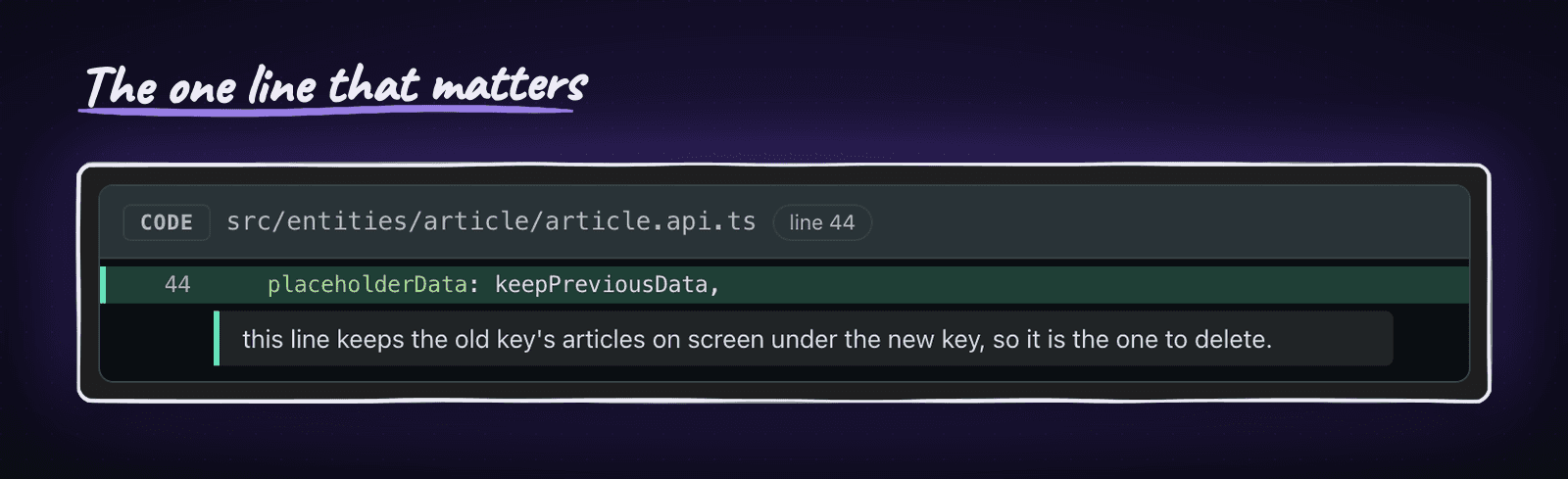
The whole fix is deleting that one line, and I'd rather read why under the line itself than three paragraphs away from it.
Sending the plan back
Once you can see the plan, you can change it before any code exists.
That happens at two points. Before the plan, the spec marks the questions the request left open, and the Clarify step has the agent ask you each one and write your answers into the spec. Once the plan is written, you comment on it in the viewer: hover a line, type a note, or strike a call-path row. Each comment waits as pending under its line.
When you're done, Refine sends every pending comment on the plan to the agent in one prompt. For each one it names the line and the section, quotes the text and gives your note, and the agent edits plan.md in place. The comments then show as applied, which means sent, not checked. I read the new plan before I move on to tasks, and comment again on anything it missed.
How the plan step picks the cards
There's nothing to set up. The plan step writes the plan, then reads the change and decides which cards it needs.
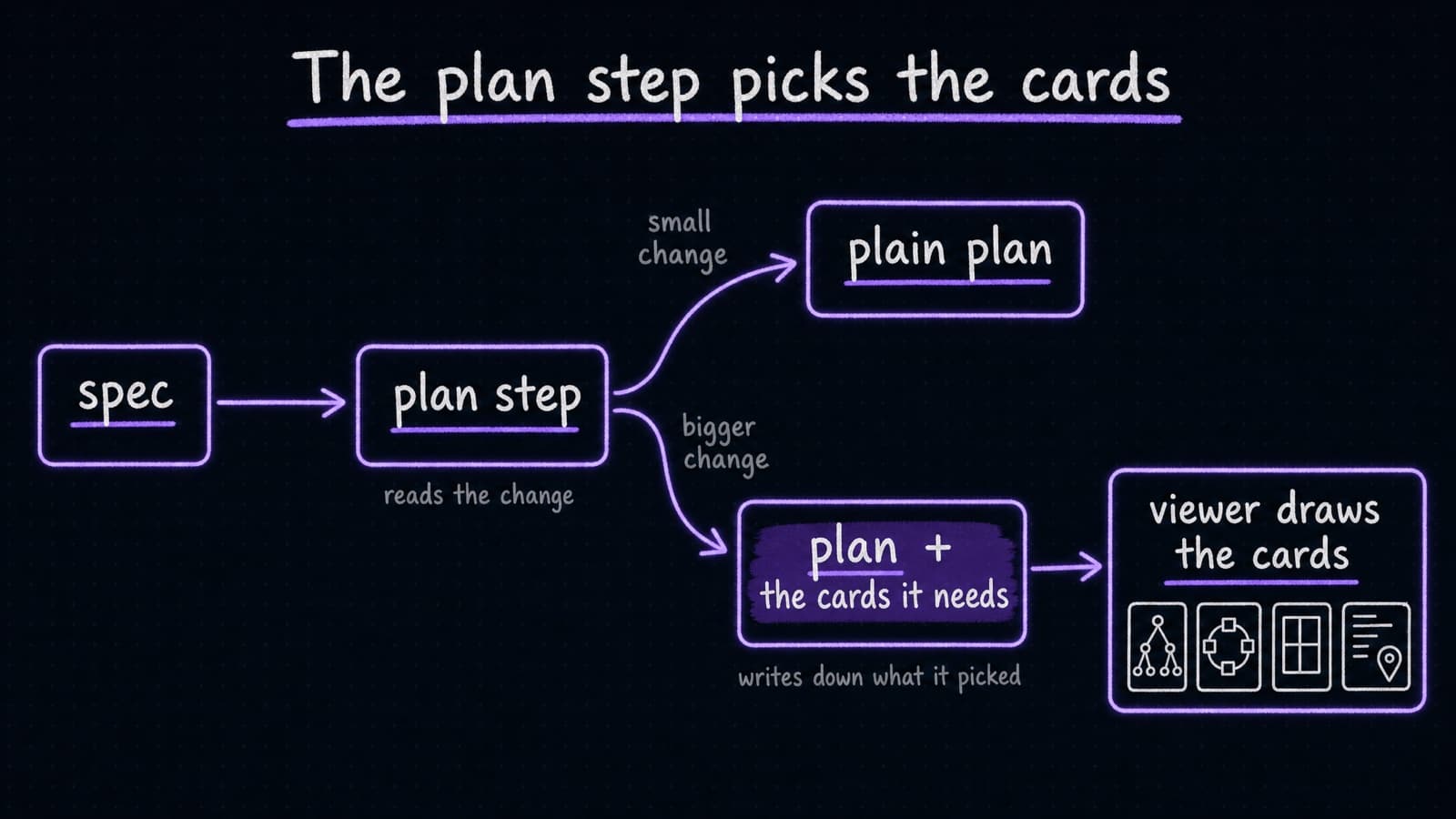
A small change gets none: renaming a link in the header went through with a plain plan. A bigger one gets only the cards that fit, and the plan step writes down which ones it picked. If it skipped one you wanted, ask for it and run the plan step again, or write the block yourself.
After the cards are written, a check opens every file and line they cite and reports a missing file or a line past the end of one. On a states card it stops on a state nothing reaches and on a dead end that isn't marked final. The result is recorded on the spec when the plan step closes, so a failed check shows up instead of hiding.
I ran three features with no hints, and each got a different set of cards. One of them added a label to two pages and got no screen, which I'd call a miss.
Try it
Update SpecKit Companion in VS Code to 0.37.0 or later, run the plan step on a change that isn't tiny, and open the plan.
The plan blocks page in the docs has the grammar of each card, including how to add one to a plain Spec Kit run. If you haven't seen the viewer these cards live in, Give Spec Kit Superpowers is the tour.
What I can and can't say yet
You see more of the plan, sooner, and you can change it before any code exists. Whether that makes the code better, I haven't measured.
If a plan of yours got a card that was wrong, or needed one it didn't get, open an issue with the plan. Those are the cases I want to see next.