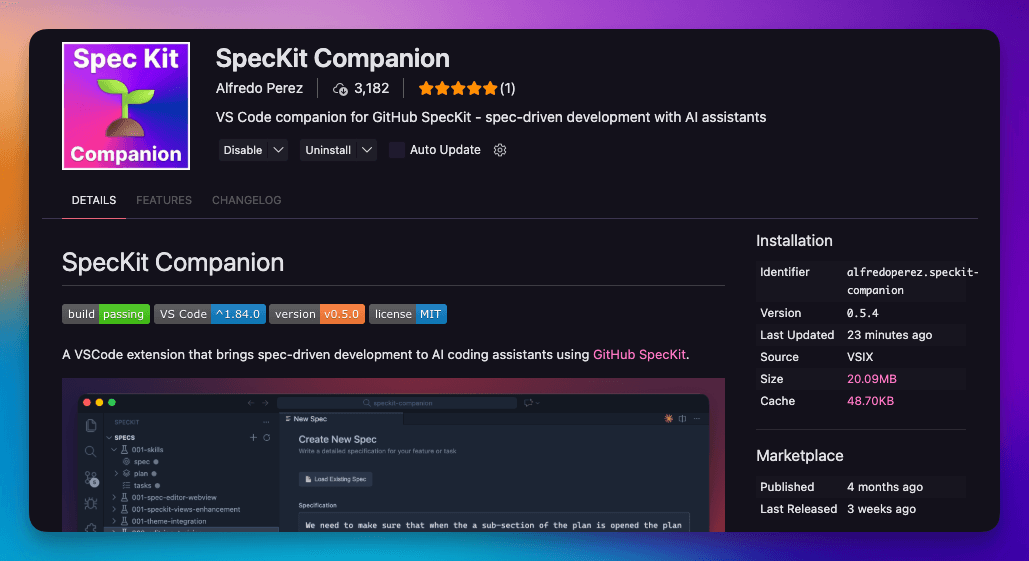
SpecKit Companion
SpecKit Companion brings spec-driven development into VS Code — browse specs, track workflow phases, review with inline comments, and manage AI configuration visually.
GitHub's spec-kit has been gaining serious traction — 46.7k stars and counting — and for good reason. It brings a solid methodology for using spec-driven development with the AI coding tool of your choice.
But you might be asking: what is spec-driven development? It's the practice of defining what you want to build and why before asking AI to write code. Instead of vague prompts and hoping for the best, you write explicit specifications that become the AI's roadmap. Fewer misunderstandings, fewer iterations, better results. (If you want the full breakdown, check out Spec-Driven Development: Stop Vibe Coding.)
Here's where SpecKit Companion enters. It's a VS Code extension that gives you a visual interface for spec-driven development — browse specs, track workflow progress, and manage your AI configuration, all without leaving your editor.
Why a Visual Interface?
When Kiro launched their IDE built around spec-driven development, something clicked for me. Seeing your specs, plans, and tasks laid out visually — not buried in markdown files — changes how you interact with them. It's easier to navigate. Easier to spot what's wrong. Easier to give feedback.
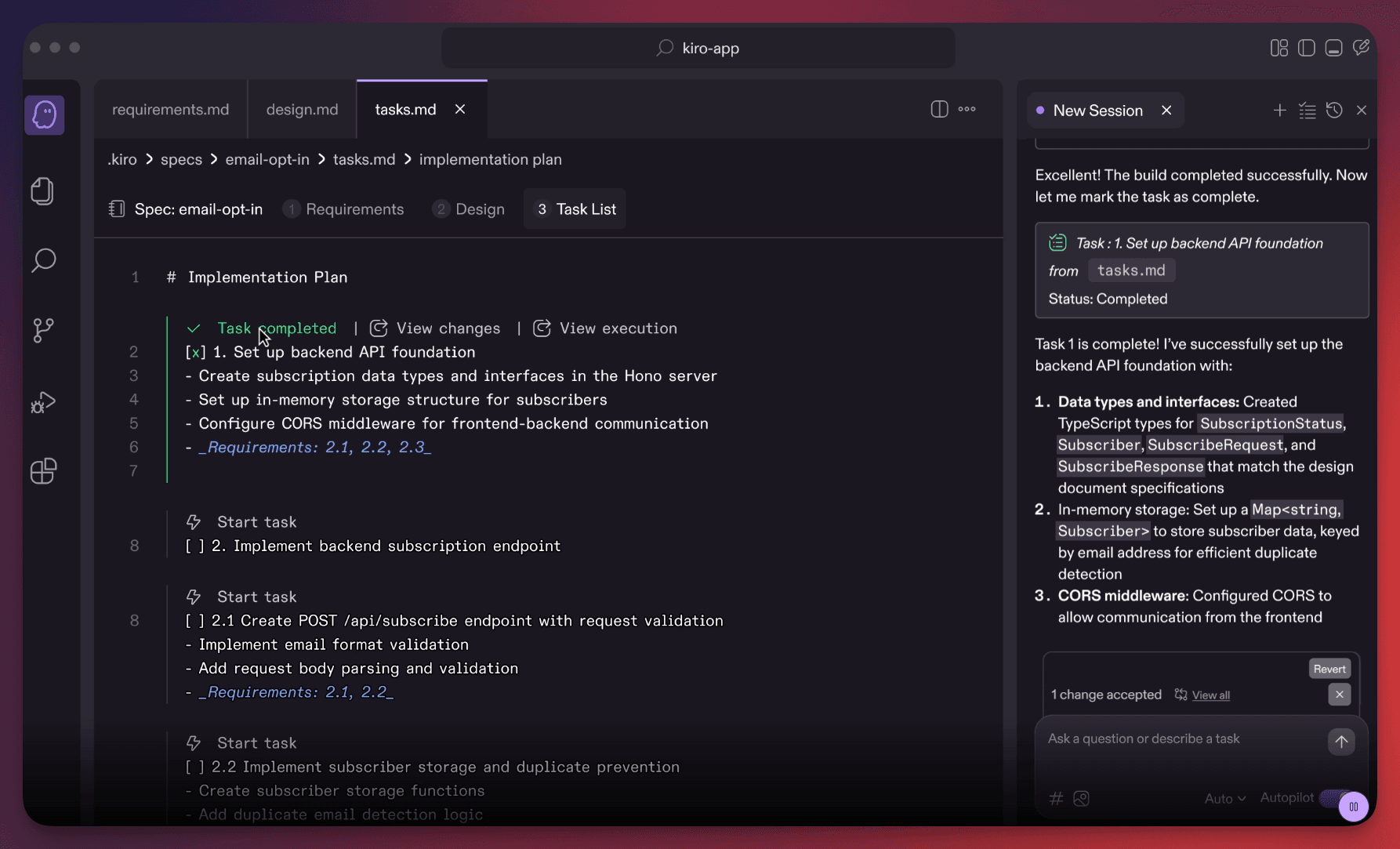
Think about it: once you're working with specifications and plans, you want to see them. You want to add a comment on line 12 of a spec where the requirement is unclear. You want to look at the plan and say "this part doesn't match what I had in mind" and regenerate just that section. You want to view diagrams inline instead of switching to a markdown preview. That feedback loop — review, comment, regenerate — is what turns spec-driven development from a process into a conversation.
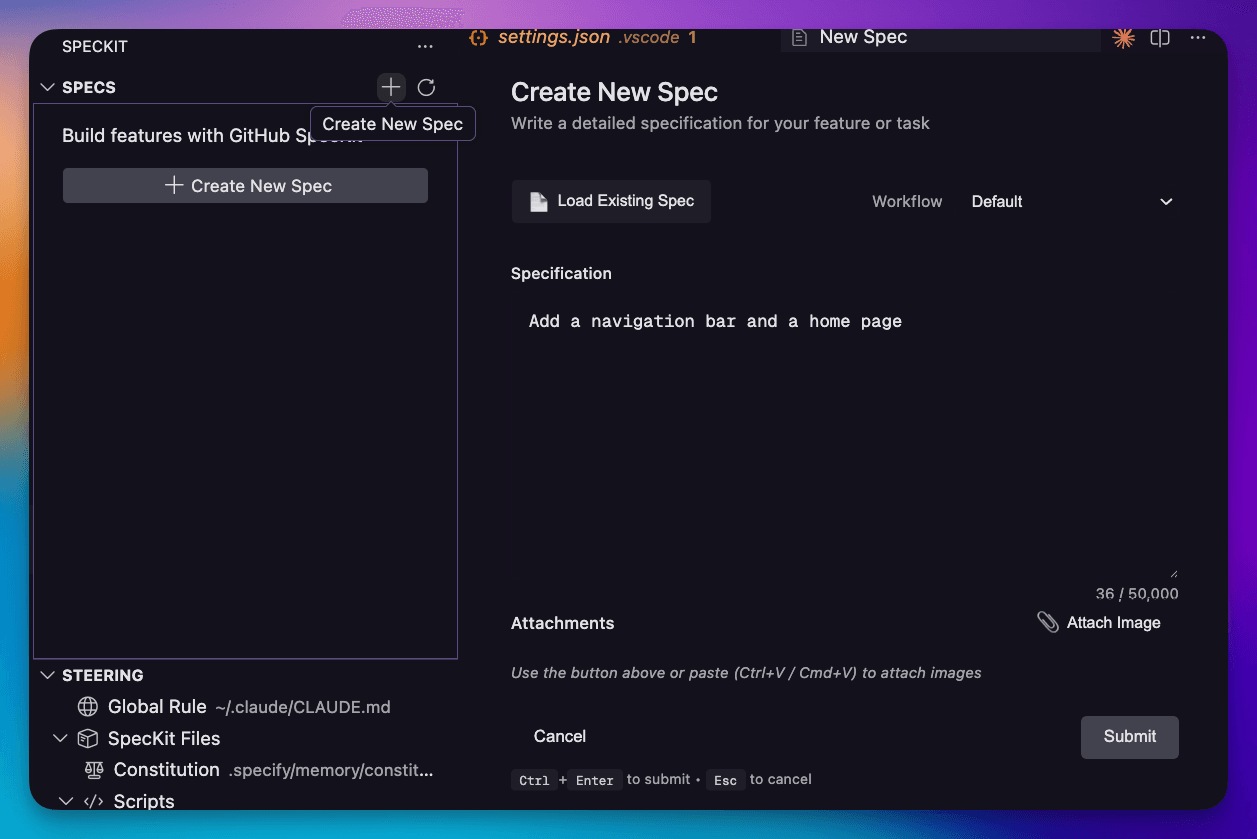
Even creating a spec is better with a visual interface. You can write a detailed description, point to existing files for context, and attach screenshots — all in one place.
But Kiro is a full IDE. I wanted that same visual experience for any AI coding assistant — Claude Code, GitHub Copilot, Gemini CLI — without leaving VS Code. SpecKit Companion was born from that gap: a lightweight extension that adds the visual layer Kiro pioneered, but works with the tools you already use.
Installation
Three steps:
- Open VS Code Extensions (
Cmd+Shift+X) - Search for "SpecKit Companion"
- Click Install
Or go directly to the VS Code Marketplace. Supports macOS, Linux, and WSL.
The Sidebar
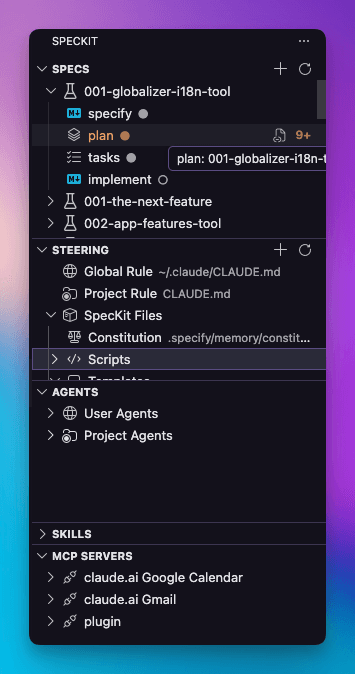
The sidebar has two main areas:
Specs — Your Workflow Hub
This is where you spend most of your time. Every specification you create shows up here with its current phase: Specify → Plan → Tasks → Done. Click any spec to open it in the Workflow Editor.
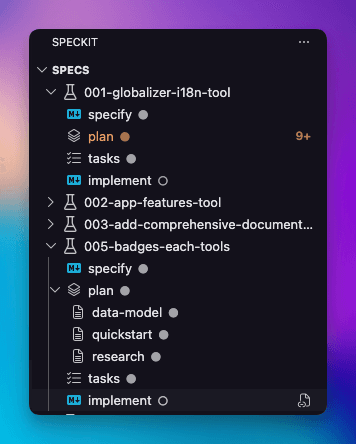
At a glance, you can see how far along each spec is — which ones are still being defined, which have plans ready, and which are fully tasked out and ready for implementation.
Configuration — Steering, Agents, Skills & Hooks
The rest of the sidebar is about context and configuration — everything that shapes how the AI works during your spec-driven workflow:
- Steering — Your project rules, constitution, and shared scripts. The guardrails that keep the AI aligned with your codebase conventions.
- Agents — Personal and project-level AI personas for specific tasks.
- Skills — MCP Servers that extend what the AI can do.
- Hooks — Automations triggered by events (Claude Code only).
Think of this area as the control panel. The specs are what you're building. The configuration is how the AI should behave while building it.
The Workflow Editor
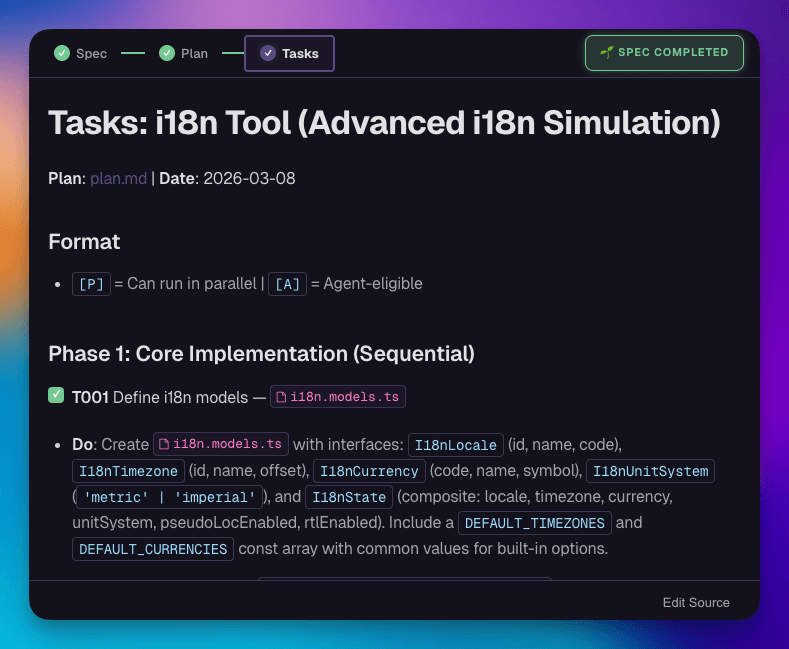
The Workflow Editor is where specs come to life. A progress bar at the top shows exactly where you are in the workflow — and a special indicator lets you know when a spec is complete.
Creating a Spec
Hit the "+" button in the sidebar and you're in. Write a detailed description, point to existing files for context, attach screenshots or mockups — whatever helps the AI understand what you're building.
Reviewing with Inline Comments
Here's where the visual interface really pays off. Once a spec or plan is generated, you can add review comments on individual lines — just like a code review. Disagree with a requirement? Comment on it. Think the plan missed something? Flag that specific line.
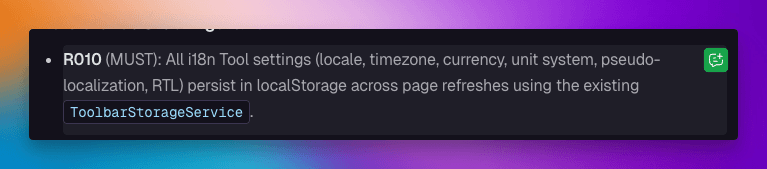
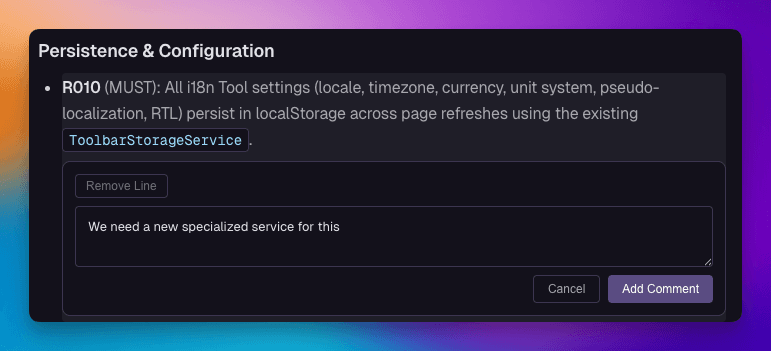
Based on your comments, you can regenerate the file — the AI uses your feedback to improve that specific section. It's a much faster feedback loop than re-prompting from scratch.
Navigating the Phases
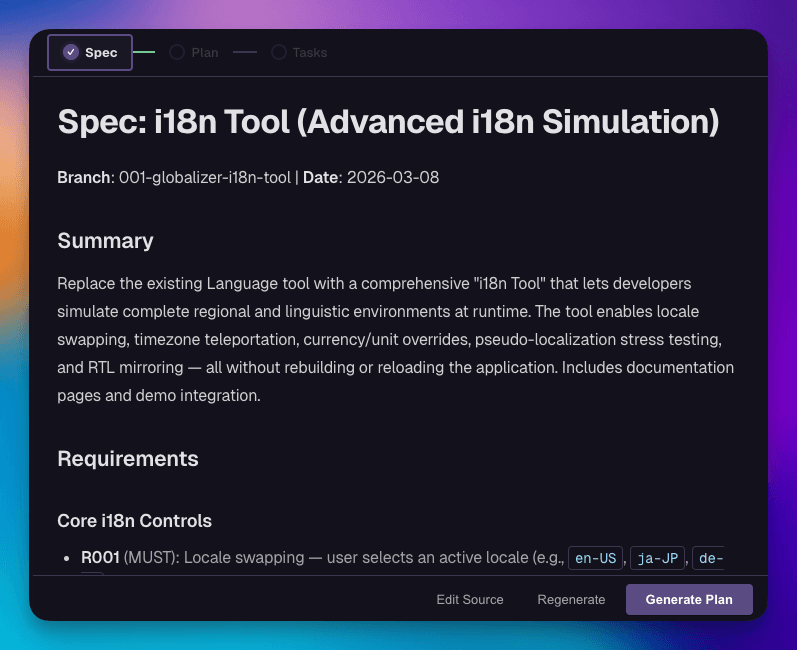
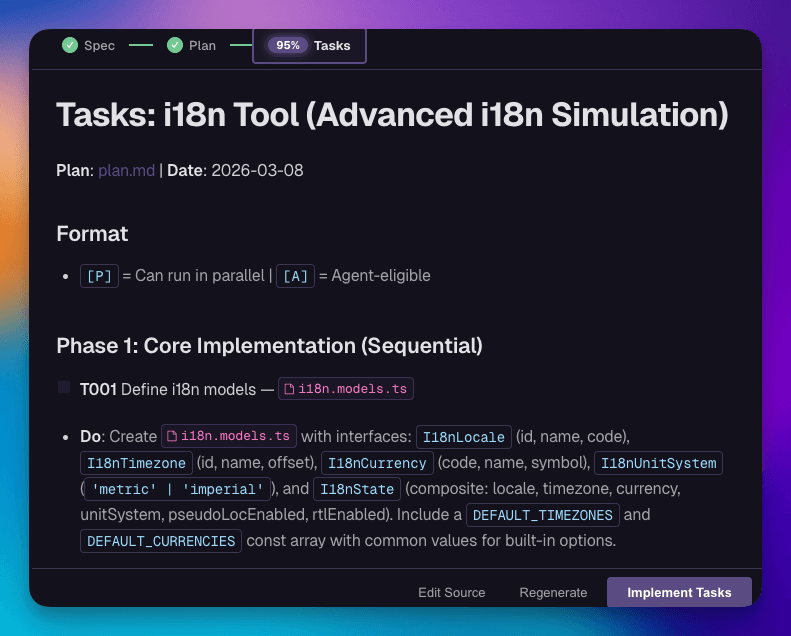
Each phase has its own view. The progress bar at the top highlights where you are, and you advance by clicking the action button at the bottom of each step.
Specify — Your requirements. The what and why. This is the first phase — it activates when you create a new spec. When you're happy with your requirements, click "Generate Plan" to move forward.
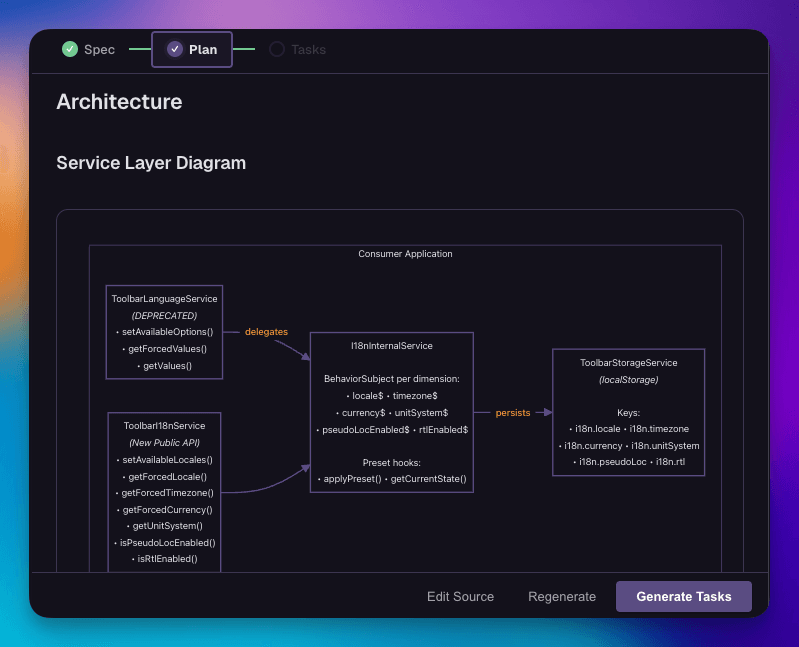
Plan — The technical strategy. In spec-kit, this isn't a single file — you get the plan itself, plus research, data models, and a quickstart reference. The editor gives you tabs to navigate between them and can even show you diagrams. When the plan looks right, click "Generate Tasks" to advance.
Tasks — The implementation breakdown. Each task is tracked, and you can see exactly how far along the implementation is. When you're ready, click "Implement Tasks" to kick off implementation.
Done — All phases complete. The progress bar shows four filled circles and the spec is marked as finished.
Beyond the Defaults: Custom Commands & Workflows
SpecKit Companion works great with GitHub spec-kit's built-in workflow. But you're not limited to it.
You can add custom commands that run in any phase of the spec-driven workflow — extending what the defaults offer. And you can create entirely custom workflows for spec-driven development that aren't tied to GitHub spec-kit at all.
This is a deep topic, so I'm covering it separately in other articles:
- Custom Workflows in SpecKit Companion — We'll demonstrate how to use another SDD AI workflow with Agent Teams Lite by Gentleman Programming
- Build Your Own SDD Workflow — We'll create and customize our own workflow that adapts to our needs.
Getting Started
New to spec-driven development? Stop Vibe Coding, Start Shipping covers the full workflow from zero.
Already using spec-kit? Install SpecKit Companion and open the sidebar — your existing .specify/ specs will show up automatically.
Links: